Thursday, May 19, 2011

No display or monitor goes blank

Can't see anything on the monitor? The major reasons are:
  • Check for the power connection. If the power button of the monitor is either green or orange then your monitor is perfect. If not, either the main power board or the power chord will have the problem. Try connecting the monitor to other main power socket or change the power chord.
  • Check for any loose connections between the main power board and the monitor. Remove the power chord and plug it back properly to the main power supply and the monitor.
  • Check out your RAM. Your monitor goes blank if you have problem with the RAM. Remove the RAM and gently rub the copper portion on either side of the RAM (the side where you fix the RAM to the RAM slot) with a soft cloth or pencil eraser and plug it back to the motherboard. If this method did not do the trick, then you have to purchase new RAM.
  • Monitor goes blank if you have a faulty video graphic port/card. Sometimes you see junk characters on the monitor when you switch on your computer. If your onboard video port is problem, then install new PCI/AGP external video card for the display.
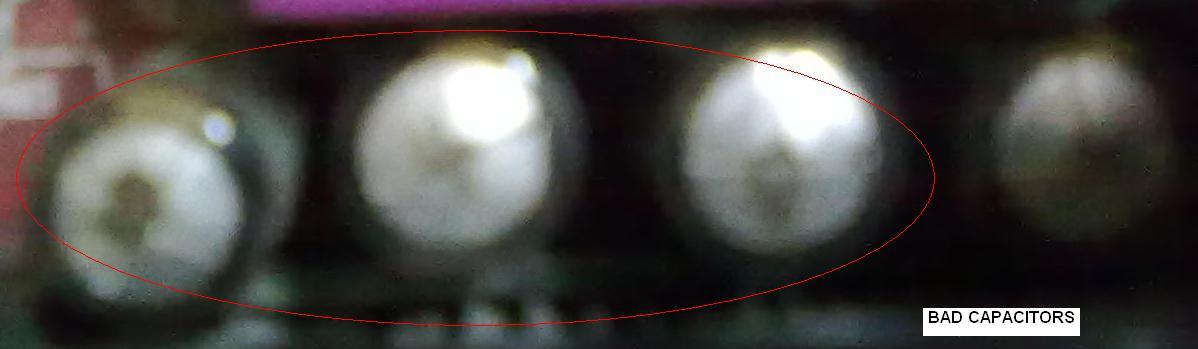
  • If your motherboard otherwise called as main board has the problem your monitor goes blank. Check out in the motherboard for failed capacitors. If you are looking at the motherboard from the top view, good capacitors will be flat on the top. Whereas bad capacitors will be bulged or opened up on the top as shown in the image.
Bad capacitors with the same value can be replaced at the computer service station. If all the capacitors are fine, then there will be problem with either onboard video port or with your PCI/AGP external card.

Wednesday, May 18, 2011

How to register .dll files manually

Programs when installing cannot register some .dll files automatically into the registry. Getting these .dll files registered is mandatory for the program or software to work properly.

To resolve this issue:
You have to manually register those .dll files into the registry which were not able to register automatically. To identify whether the .dll files can be self registered or not, RIGHT-CLICK on the particular .dll file and click on the PROPERTIES option. You will see two tabs as shown in the image below.
Click on the "VERSION" tab. In the Item Name window if you see "OleSelf Register" then the file can be self registered manually or else it is not possible. Now copy the .dll file to C:\Windows\System32 folder. Then select "START" button and click on "RUN"or hold the "WINDOWS" key and press "R" to open
RUN window and type "regsvr32 C:\Windows\System32\<filename>.dll and press "ENTER". Finally you will get the message that your .dll file has been registered successfully as shown below.


Long beep sound when computer is switched on

If you are getting long beep sound continuously when you switch on your computer and not able to see the display on the monitor, chances are more that the RAM (Random Access Memory) is not fixed properly into the RAM slot or RAM itself will be having the problem or if you have installed any new hardware in the PCI or AGP slot of the motherboard.

To resolve this issue:
  • If you have fixed any new hardware in the PCI or AGP slot, make sure that they are fixed properly. If fixed properly then, the newly installed hardware is not compatible with your motherboard.
  • Check whether the RAM is placed and fixed properly. If still the problem persists, remove the RAM from the motherboard and take a pencil eraser or a soft cloth and gently rub on the copper portion on either side of the RAM (the side where you fix the RAM to the RAM slot on the motherboard) and fix it back and switch on the computer. Chances are more that your computer starts booting without problem. But remember this method cannot guarantee that it will always work.
  • If your RAM is dead and when purchasing a new RAM, make sure that your motherboard supports the new RAM. If you are not sure the type of RAM to purchase, tell the vendor your motherboard brand and the model no. It will make him easy to recognize the type of RAM which supports your motherboard.

Remember always to turn off the computer before you make any hardware changes.

Computer restarts or hangs

There are many reasons for computer getting restarted frequently. Four major problems are either the operating system files are corrupt or the problem with the RAM or with any new installed hardware or with the heat sink fan.

To resolve this:
  • Remove any newly installed hardware if any, because your computer may not be compatible with the installed hardware. If installed hardware supports your motherboard then there will be problem with the new hardware settings.
  • Remove the RAM and gently rub the copper portion on either side of the RAM (the side where you fix the RAM to the RAM slot on the motherboard) with a soft cloth or pencil eraser and plug it back to the motherboard.
  • In the motherboard, checkout the heat sink fan (usually called as processor fan) placed on the processor. The fan should be rotating constantly. If the fan is failed, the processor will get overheated causing your computer to get restarted automatically. There are also chances of your computer getting hanged.
  • The other possibility is, the SMPS (Switch Mode Power Supply) otherwise called as power supply may have the problem. Checkout whether the SMPS fan is rotating properly or getting over heated.
  • If you still face the same problem then repair your operating system files using your operating system CD/DVD.

Control Panel Keyboard Shortcuts

Go to "START" and click on "RUN" or hold the "WINDOWS" key and press "R" and type the shortcut commands.


appwiz.cpl = Opens Add/Remove Program window
devmgmt.msc = Opens Device Manger window
ncpa.cpl = Opens Network Connections window
netsetup.cpl = Opens Network Setup Wizard window
nusrmgr.cpl = Opens User Accounts window
timedate.cpl = Opens Date and Tie Properties window
mmsys.cpl = Opens Sound and Audio Devices Properties window
hdwwiz.cpl = Opens Add Hardware Device window
sysdm.cpl = Opens System Properties window
desk.cpl = Opens Display Properties window
firewall.cpl = Opens Windows Firewall window
access.cpl = Opens Accessibility Options window
wscui.cpl = Opens Windows Security Center window
wuaucpl.cpl = Opens Automatic Updates window
joy.cpl = Opens Games Controllers window
inetcpl.cpl = Opens Internet Properties window
main.cpl keyboard = Opens Keyboard Properties window
main.cpl = Opens Mouse Properties window
telephon.cpl = Opens Telephone and Modem Properties window
powercfg.cpl = Opens Power Options Properties window
Control printers = Opens Printers and Faxes window
intl.cpl = Opens Regional and Language Options window
control schedtasks = Opens Scheduled Tasks window

To open Control Panel, type "CONTROL" in "RUN" window and press "ENTER" key.

Google Analytics