Saturday, June 18, 2011

How to access remote computer's drives and folders from your computer through RUN window

For example if you have three computers connected to network (A, B, C) assuming A, B, C are the names of the computers and you want to access " D "drive of computer " B " from computer " A ". The procedure is

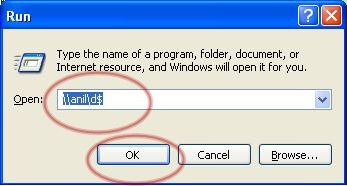
Go to START and click on RUN or hold the WINDOWS key and press R to open RUN window. Type
" \\B (computer name of computer B) or IP address of computer B\D$ " and press ENTER key. If assigned any administrator password a window will popup asking username and password of computer " B ". Enter the username and password and press ENTER key to open Drive D of computer B.
It should look like " \\B\D$ "
If you do not know the IP address of the remote computer, hold the WINDOWS key and press R to open RUN window. Type " cmd " and press ENTER key to open DOS window.  In the DOS command prompt type " ping <computer name> ". In the above example type " ping B " and press ENTER key to get the IP address of the computer " B ".
 
In the above image I am pinging the remote computer ANIL to get the IP address.

There is another way to access remote computer through WINDOWS EXPLORER. Hold the WINDOWS key and press E or hold the WINDOWS key and press R to open RUN window. Type
" explorer " and press ENTER key to open WINDOWS EXPLORER. In the ADDRESS BAR type
" \\B\D$ "

Thursday, June 16, 2011

How to install SATA hard disk drive when your motherboard does not have SATA port

SATA hard disk is cheaper and has high data transfer rate compared to IDE hard disk drives. All recent motherboard has integrated SATA port whereas some older motherboards do not have SATA port.

Usually there are two types of SATA hard disk drives depending on manufacturers.
Some hard disk manufacturers do not provide power slot in the hard disk where you need SATA power cable for power supply for hard disk drive as shown in the image.
 In the first image above label 1 is for connecting SATA data cable and label 2 is for connecting SATA power cable.
In the above image power slot is readily available in the hard disk drive along with SATA power slot and a port for connecting SATA data cable, so there is no need of extra SATA power cable. You can directly plug any one power connector  which comes from SMPS to hard disk power slot.
 If you want to fix SATA hard disk drive to the motherboard which does not have SATA port you have to purchase IDE  to SATA/SATA to IDE dual convert adapter or USB to SATA/IDE cable.

IDE  to SATA/SATA to IDE dual convert adapter as shown in the image is a card which has to be fixed to the IDE slot of the motherboard. IDE slot is where you fix the IDE hard disk drive with 40 pin IDE data cable. This card does not need any drivers to be installed.
The USB to SATA/IDE cable has one SATA and one IDE port which has to be connected to USB port of the computer. When SATA or IDE hard disk connected with this cable it acts as a removable disk.

Wednesday, June 15, 2011

Block certain sites or mapping of IP addresses to host names using HOSTS file

HOSTS file contains mappings of IP addresses to host names. The HOSTS file does not have any extension. It is just names as “ hosts ”. Some computers running Windows operating system does contain HOSTS file. Instead those computers will have a file called “ hosts.sam ”, meaning sample file containing mappings of IP addresses to host names.
You can open the HOSTS file in any text edit such as NOTEPAD and make the changes.

If you want to block certain sites, for example to block www.google.com, open HOSTS file using notepad and add " 127.0.0.1 www.google.com " without double quotes at the end of the line. Save the HOSTS file and open your favorite browser and type " www.google.com " in address bar. Now you can see the message " Page cannot be found ".  If you are still able to browse the Google page then restart the computer and again open the Google website in web browser. " 127.0.0.1 " is the loopback IP address also called as local address pointing to you own computer. In the above example you are directing IP address of the Google to your computer
To find the IP address of the website, go to START and click on RUN or hold the WINDOWS key and press R to open RUN window. Type " cmd " and press ENTER key to open DOS window. Now type
" ping www.google.com " without double quotes to ping Google website to find the IP address.
You can increase the internet surfing speed by mapping IP addresses to host names. Usually IP addresses to host names resolving is done by DNS (Domain Naming Servers). Some times it takes time to resolve IP addresses to host names using DNS. If that is the case, then you can use HOSTS file to map IP addresses to host names. For example, if you want to map BING website to Google website IP address then get the IP address of www.google.co.in using PING in DOS window and type <IP address of Google> www.bing.com
It should look like " 74.125.236.48 www.bing.com " without double quotes. Here 74.125.236.48 is the IP address of www.google.co.in
Now when you type www.bing.com in the address bar of the browser it will direct to www.google.co.in
But remember the HOSTS file size is limited. You cannot add a big list to block or map the websites.

In Windows/95/98/ME, HOSTS file is located at C:\WINDOWS\HOSTS
In Windows NT/2000, HOSTS file is located at C:\WINNT\SYSTEM32\DRIVERS\ETC\HOSTS
In WindowsXP Home/Pro , HOSTS file is located at C:\WINDOWS\SYSTEM32\DRIVERS\ETC\HOSTS

NOTE: Always remember to take backup of your original HOSTS file before making changes to it.
Tuesday, June 14, 2011

Windows shortcut keys

Go to “ START “ and click on “ RUN “ or hold “ WINDOWS “ Key and press “ R “ to open “ RUN “ window and type the shortcut command.

gpedit.msc = Opens Group Policy Window
certmgr.msc = Opens Certificate Manager Window
compmgmt.msc = Opens Computer management Window
devmgmt.msc = Opens Device Manager Window
lusrmgr.msc = Opens Local Users and Groups Window
dfrg.msc = Opens Defragment Window
diskmgmt.msc = Opens Disk Management Window
fsmgmt.msc = Opens Folder Sharing Management Window
eventvwr.msc = Opens Event Viewer Window
control = Opens Control Panel Window
wmimgmt.msc = Opens Windows Management Infrastructure Window
ntmsmgr.msc = Opens Removable Storage Window
perfmon.msc = Opens System Performance Manager Window
secpol.msc = Opens Local Security Policy Window
services.msc = Opens System Services Window
ciadv.msc = Opens Indexing Service Window
sndvol32 = Opens Volume Controller Window
regedit = Opens Registry Editor Window
taskmgr = Opens Windows Task Manager Window
winchat = Opens Windows chat Window
sndrec32 = Opens Windows sound recorder Window
msconfig = Opens system configuration utility Window
calc = Opens Windows calculator Utility
clipbrd = Opens Windows clipbook viewer Window
explorer = Opens Windows Explorer Window
iexplore = Opens Internet Explorer Application

Monday, June 13, 2011

Low Level Format or Zero Fill the hard disk drive

Low Level Format also called as Zero Fill is a method to completely wipe or erase the entire hard disk drive. Zero filling the hard disk drive will get rid of problems related to partitions errors such as problem reading data from sectors and tracks, wiping off confidential data for security and privacy reason, boot sector viruses. Scan and replace bad sectors. When you format the hard disk during windows installation, the operating system fills zeros only to the sectors where the operating system related files are copied. In order to perform zero filling the complete hard disk drive you have to download the low level formatting tool from particular hard disk vendor’s website. DOS based low level formatting tools are always recommended. In older computers, most of the BIOS were integrated with option called “ Low Level Format ” to completely destroy the data and repair hard disk related issues.

After Low level format or zero fill, if your hard disk drive is not working properly or still has any mechanical problem, then try zero filling the hard disk drive using third party software if not replace the hard disk drive.

Always remember to take backup before zero filling the hard disk drive and never zero fill unless there is very good reason to do so.

Seagate HDD (Hard Disk Drive) Tool
Click here  to download Zero Fill tool for Seagate hard disk drive. Same tool can also be applied for Maxtor Hard Disk Drive.

Western Digital HDD (Hard Disk Drive) Tool
Click here to download the tool by selecting specific hard disk drive model.

Samsung HDD (Hard Disk Drive) Tool
Click here  to download the tool.

Hitachi HDD (Hard Disk Drive) Tool
Click here  to download the tool.

Free Zero Fill Tool
This is a free utility which supported Maxtor, Hitachi, Seagate, Samsung, Toshiba, Fujitsu, IBM, Quantum, Western Digital.
Click here to download the tool.

Google Analytics