Monday, April 30, 2012

Transfer data or contents from one IDE hard disk to another IDE hard disk (Part 2)


PROCEDURE FOR CONNECTING TWO HARD DISK DRIVES TO TWO INDIVIDUAL IDE DATA CABLES

Usually the old motherboard has two IDE slots. You can connect one IDE slot to hard disk drive and the other IDE slot to IDE CD-ROM or Combo Drive OR DVD Drive

Now connect one end of the first IDE data cable to hard disk drive ( MASTER or first hard disk drive ) and the other end to first IDE port of the motherboard. Similarly connect second IDE data cable to the hard disk drive ( SLAVE or second hard disk drive )and the other end to the second free IDE slot on the motherboard as shown below.


Note :

(1) Jumper pin settings vary depending on the brand of the hard disk manufacturer.
(2) Most of the recent motherboards will have only one or will not have IDE slot. Instead will have only SATA port.

Sunday, April 29, 2012

Transfer data or contents from one IDE hard disk to another IDE hard disk (Part 1)

If you want to transfer large data or content from one hard disk to another hard disk, it just simply cannot be done by connecting two hard disk and switching on the system. Here is the procedure to copy data from hard disk to hard disk without any hassle.

Always remember whenever you want to copy from hard disk to hard disk, one hard disk must be MASTER and another hard disk must be SLAVE provided if you are connecting both hard disk to a single IDE data cable. If you are connecting two hard disk using two IDE data cables, then no need to make either of the hard disk as MASTER or SLAVE.

PROCEDURE IF YOU ARE CONNECTING TWO HARD DISK DRIVES USING SINGLE IDE DATA CABLE

In SEAGATE brand hard disk there is a jumper pin setting space between the IDE data cable slot where you fix the data cable to hard disk and power slot where you fix the power cable which comes from SMPS (power supply) as shown in the image below

Click here to see the purpose of using a jumper.
By default when you purchase a new hard disk the jumper pin is set to MASTER. To make the hard disk SLAVE remove the jumper pin (In Seagate Hard Disk Drive). Removing the jumper pin makes the hard disk to act as SLAVE.

All the hard disk manufacturers have a jumper pin settings diagram pasted on the hard disk as shown below.
After making sure that one hard disk is master and the other is slave, connect both hard disks as shown below.
Now you should be able to see the drives of both hard disk drives when you switch on the system.

The IDE data cable comes with two and three slots. You need to use three slots IDE cable if you are connecting two hard disk using only one IDE data cable. Out of three slots first slot should be connected to MOTHERBOARD also called as MAIN BOARD and the second free slot should be connected to MASTER hard disk drive and the third free slot has to be connect to SLAVE hard disk drive.

There are chances when two hard disk are connected to a single IDE data cable, sometimes the SLAVE or MASTER hard disk will not be detected. In that case you have to connect both hard disk with individual IDE data cables ie, one ide data cable for MASTER hard disk drive and another IDE data cable for SLAVE hard disk drive.

Note:
(1) Jumper pin settings vary depending on the brand of the hard disk manufacturer.
(2) This method is not required if both hard disk drives are of SATA type. For SATA type hard disk drive, simply connect both hard disk drives to the mother board using individual SATA data cables. After connecting properly you should be able to see both hard disk drives when your windows boots up.

Tuesday, July 12, 2011

How to remove Windows Security Alert from status bar tray

Follow the procedure to turn off automatic windows updates and to remove Windows security alert from status bar tray.
Hold WINDOWS key and press R or go to START and click on RUN to open RUN window. Type
" MSCONFIG " without doubles quotes and press ENTER key or click OK button to open SYSTEM CONFIGURATION UTILITY
 Click on SERVICES tab and in the list look for the name SECURITY CENTER and deselect.
Now click OK. You will be asked to RESTART the computer for changes to be affected.
To remove Windows automatic updates:

Hold WINDOWS key and press R or go to START and click on RUN to open RUN window. Type
" MSCONFIG " without double quotes and press ENTER key or click OK button to open SYSTEM CONFIGURATION UTILITY.
 
Click on SERVICES tab and in the list look for the name AUTOMATIC UPDATES and deselect.
Now click OK. You will be asked to RESTART the computer for changes to be affected.

Thursday, July 07, 2011

How to create backup and restore registry

To SAVE or EXPORT or BACKUP registry.

Go to START and click on RUN or hold WINDOWS key and press R to open RUN window. Type 
" REGEDIT " without double quotes and press ENTER key to open REGISTRY EDITOR.
Go to FILE menu and click on EXPORT.
Give a name and path and click on OPEN to save the registry file.
To RESTORE or IMPORT the existing backup registry file.

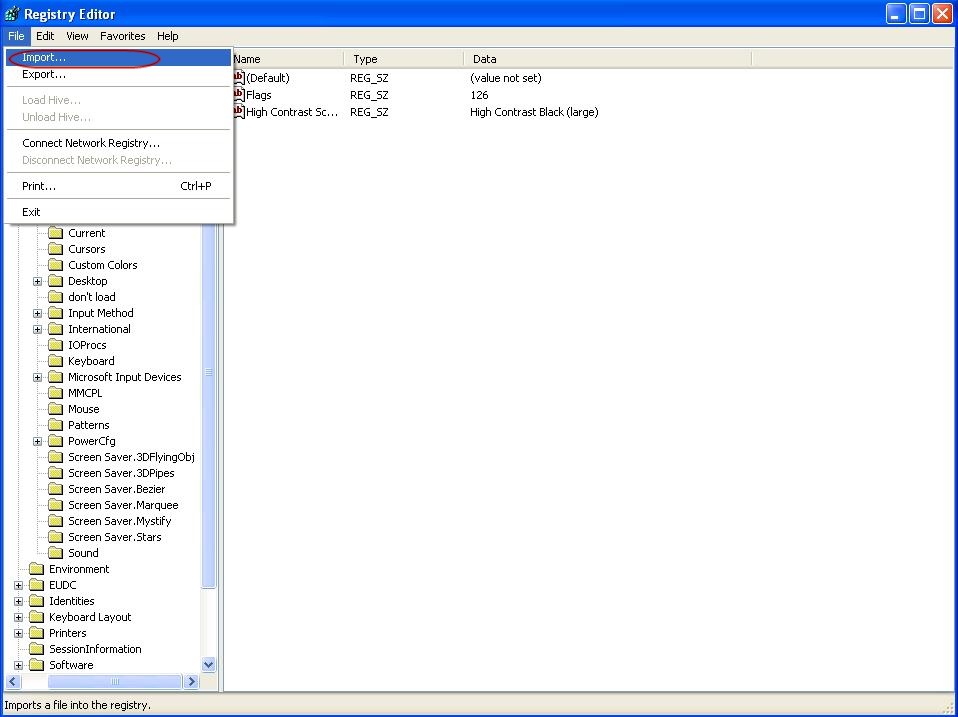
Considering you have already taken backup of the registry to a file, go to FILE and click on IMPORT.
Now go the location of the saved registry file. Select the backup registry file and click on OPEN to restore the previous stored registry settings.

Tuesday, July 05, 2011

How to create desktop icons, files and folders without any name in Windows XP

If you want to remove the names placed under the icons on desktop do the following procedure.

Right click on the icon  and click on RENAME or select the icon and press SHIFT + F3 to open right click mouse button and select RENAME or just select the icon and press F2 to RENAME.

Now delete the existing name and type 255 holding ALT button and press ENTER key. You can see no name under the icon.

Note:
  • This works only with alphanumeric keypad numbers and not the numbers placed in the second row of the keyboard.
  • This method works even for files and folders placed on desktop.

Google Analytics